Doors, not scrollbars.
An OpenVGal gallery is a place rather than a page. You walk it at eye level, change room through a door or the map, and step up to a piece to read its title. This is everything the viewer does, on one page.
Experiencing it needs no account, and nothing you see changes between a gallery you host yourself and one published here — it is the same viewer. Worth reading once for yourself, and worth sending to visitors who have never walked a gallery before.
Intro
You normally start at the Gallery Hub, which connects the rooms. You arrive standing on the floor, about a metre and a half up, and you cannot walk through walls — the camera collides with the building the way a body would. Movement is deliberately unhurried.
- Arrow keys
- Forward, back, and sideways. On a desktop browser WASD does the same thing.
- Mouse
- Drag to look — up, down, and turning on the spot. There is no pointer lock to escape from.
- One finger
- On a touchscreen, drag forward to walk on and back to retreat.
- Two fingers
- Drag with two fingers to turn.
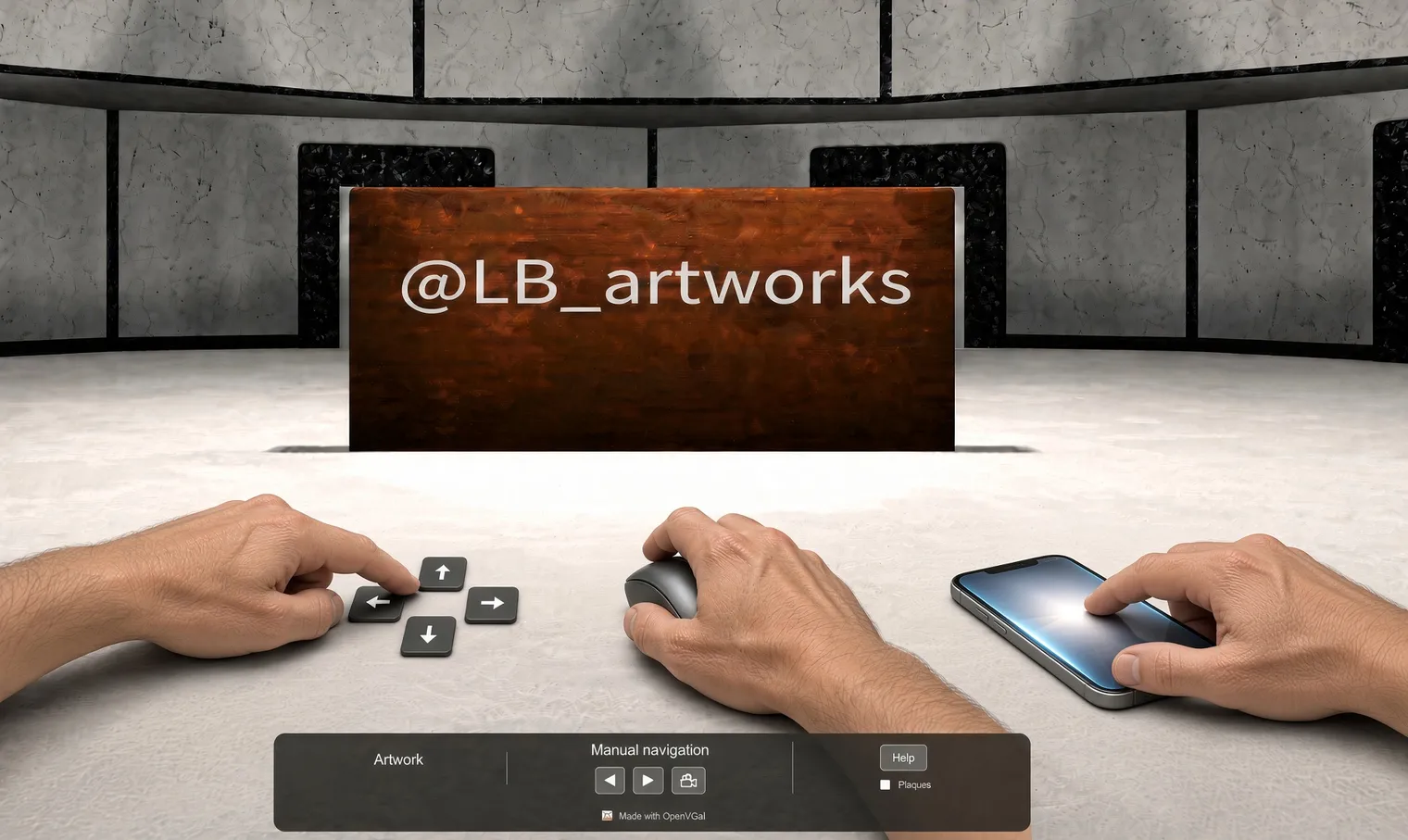
The controls are the same in the builder’s Preview, so the walk you take before saving is the walk your visitors get. If a visitor is stuck, Help on the overlay draws these same controls in four languages.
Changing room
A visit is usually several rooms rather than one. There are two ways to get between them, and a third for sending someone straight to one.
Doors
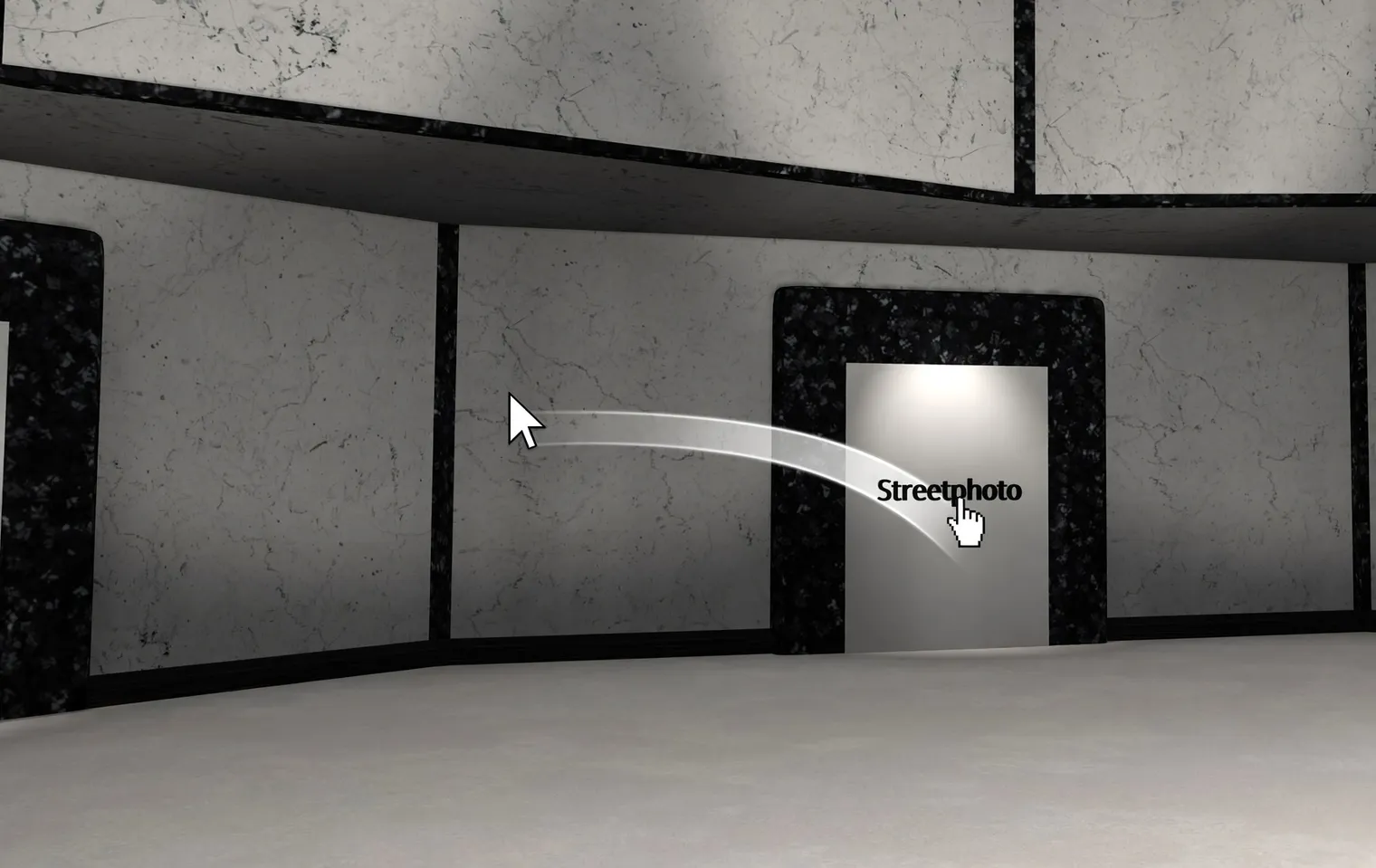
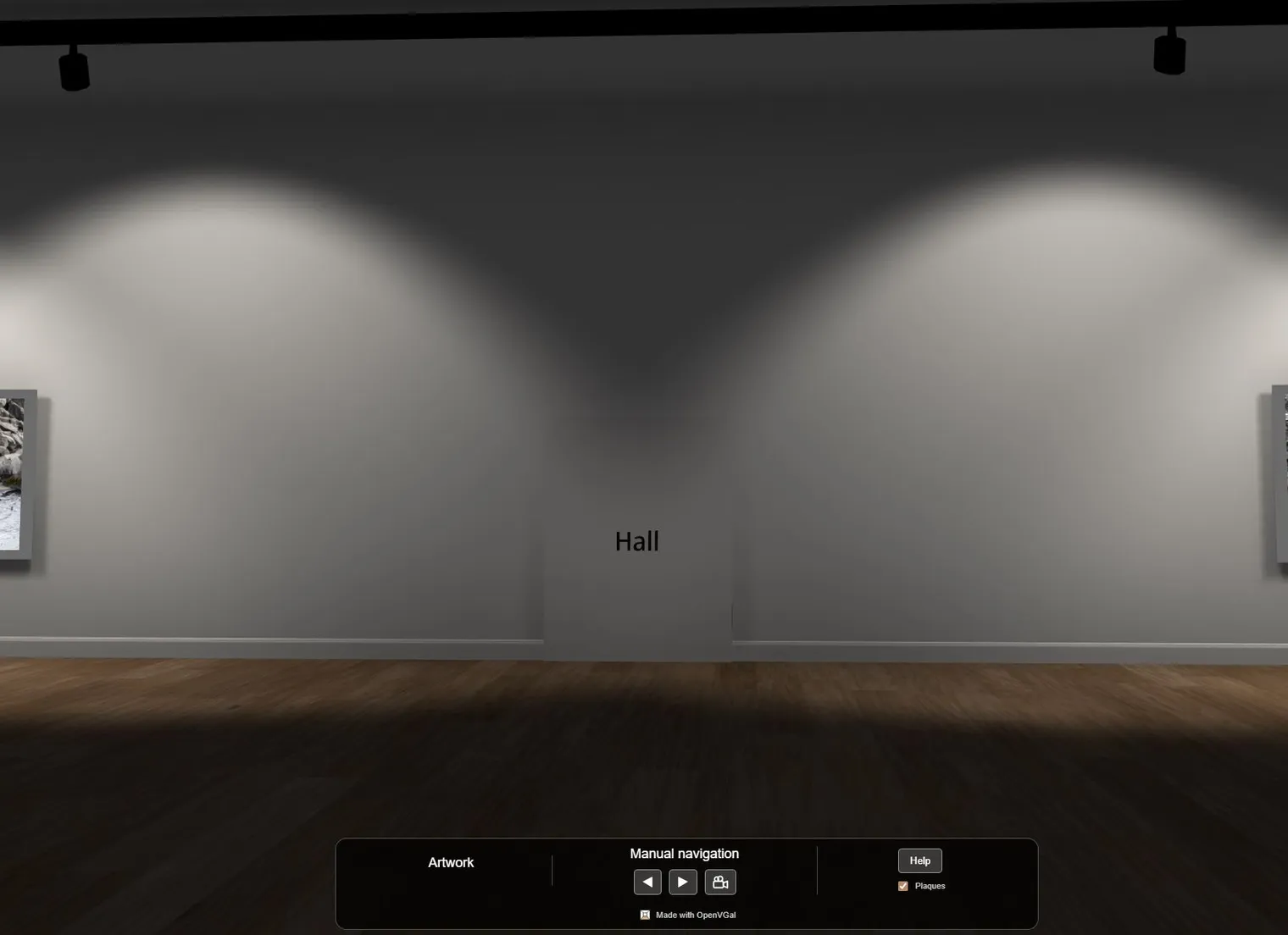
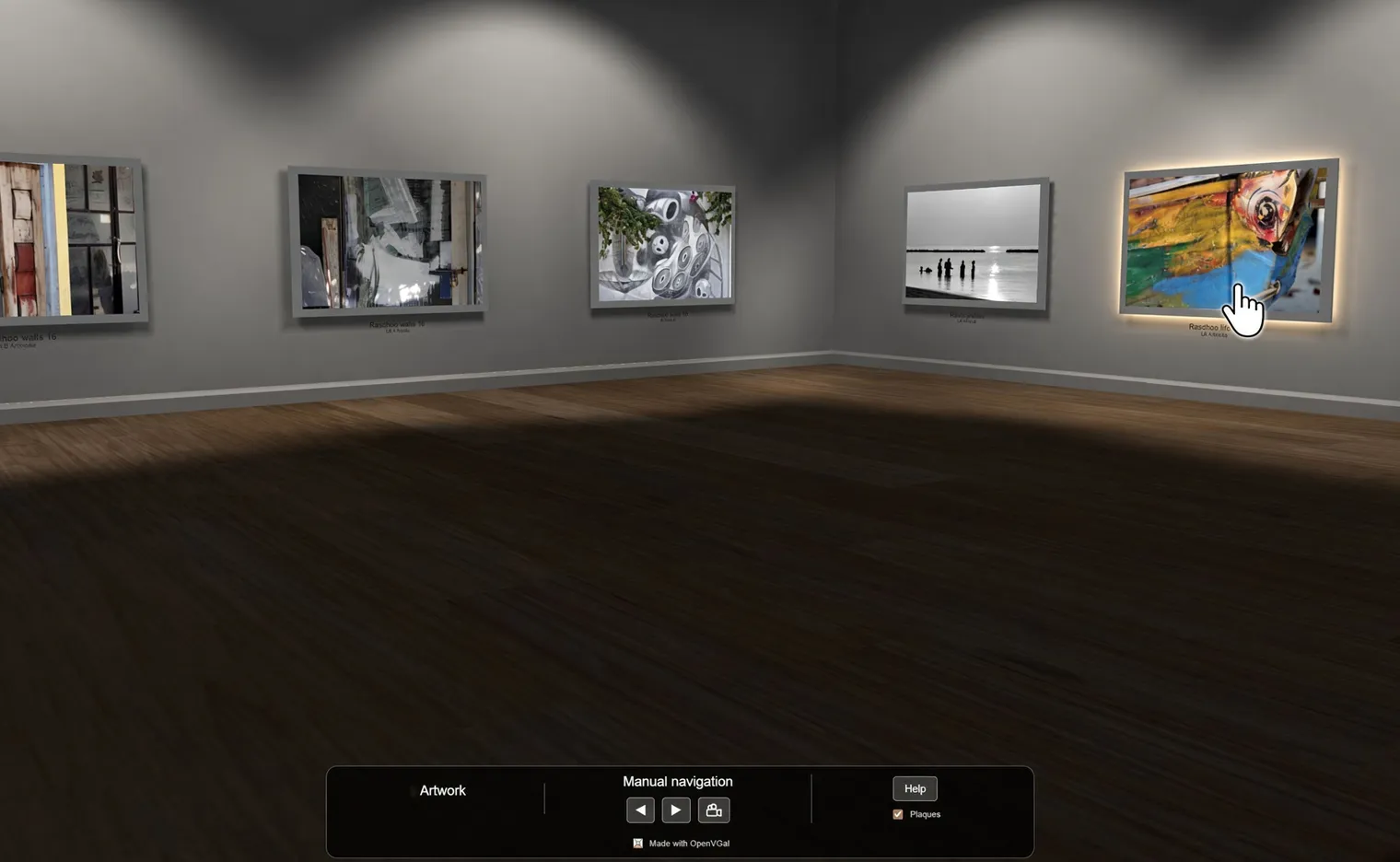
Hover over a door and the pointer changes from an arrow to a pointing finger. Click the door to walk through it. Rooms are loaded one at a time: opening a door builds the room you are entering and releases the one you are leaving, so a building with a dozen rooms costs a visitor no more than a building with one. That is why it is worth splitting a large body of work across several rooms rather than crowding a single one.
The map
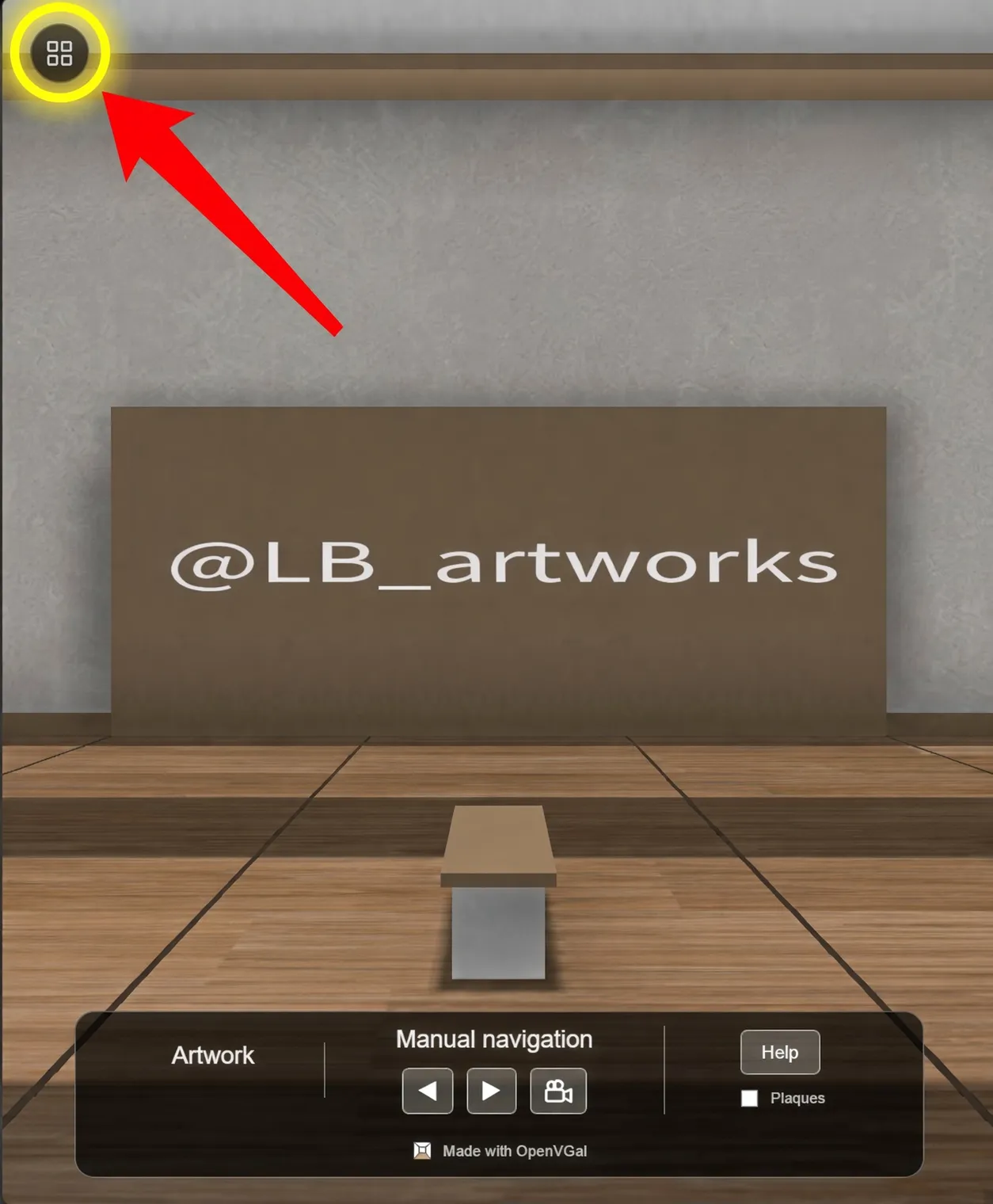
The button in the top-left corner opens the Gallery Map — every room in the building as a card, showing the first piece hung in it and how many works it holds. The room you are standing in is marked. Click any other card and you are put down in that room without walking there.
It is the fast way around a large building, and the simplest way to see at a glance how much a room holds. When the artist has given the exhibition a title and a description, they head the map.
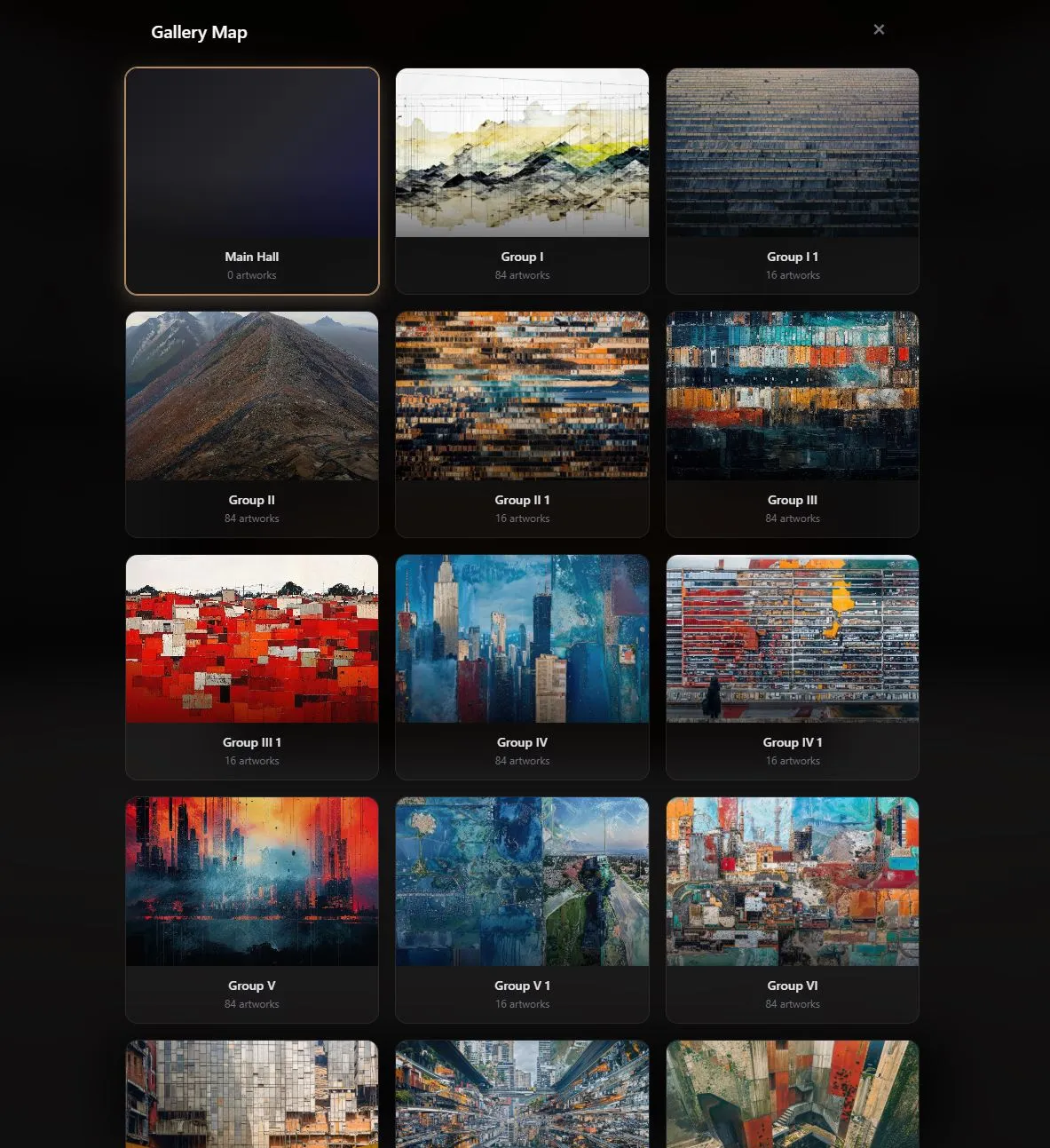
The entrance is listed as Main Hall. A folder too large for one room is
split across several, and the map writes those as Early work, Early work 1,
Early work 2 — readable names rather than the raw keys underneath.
Linking to one specific room
Every room carries the name of the folder it was built from, unless you renamed it later. Add that name to the gallery URL and a visitor lands in that room instead of at the entrance:
openvgal.com/view/you/your-gallery?gallery=Early%20work
Useful when you are pointing a curator at one body of work, or linking a single
series from a post. The entrance itself is called root. Moving around with the
map keeps this part of the address up to date, so the URL in the bar is always
the room on screen — copy it at any point and you have a link to where you are
standing.
The name has to match the room exactly, encoded for a URL — a space becomes
%20. Those overflow rooms are really named Early work#1, Early work#2, and
in a link that # has to be written %23, or the browser reads the rest as a
page anchor and drops it.
If the name does not match anything, the viewer opens the entrance Hub instead — a wrong link never triggers a broken page.
The overlay
An overlay sits across the lower part of the screen to help you through the gallery. It has three parts:
- Left — shows the title of the artwork.
- Centre — moves you through the gallery without walking, and turns the music off and on when there is any.
- Right — shows or hides the plaques, and opens the help.
The overlay can be minimized to a slim bar at the top, beside the map button, to clear the view. The gallery remembers that choice on your next visit.

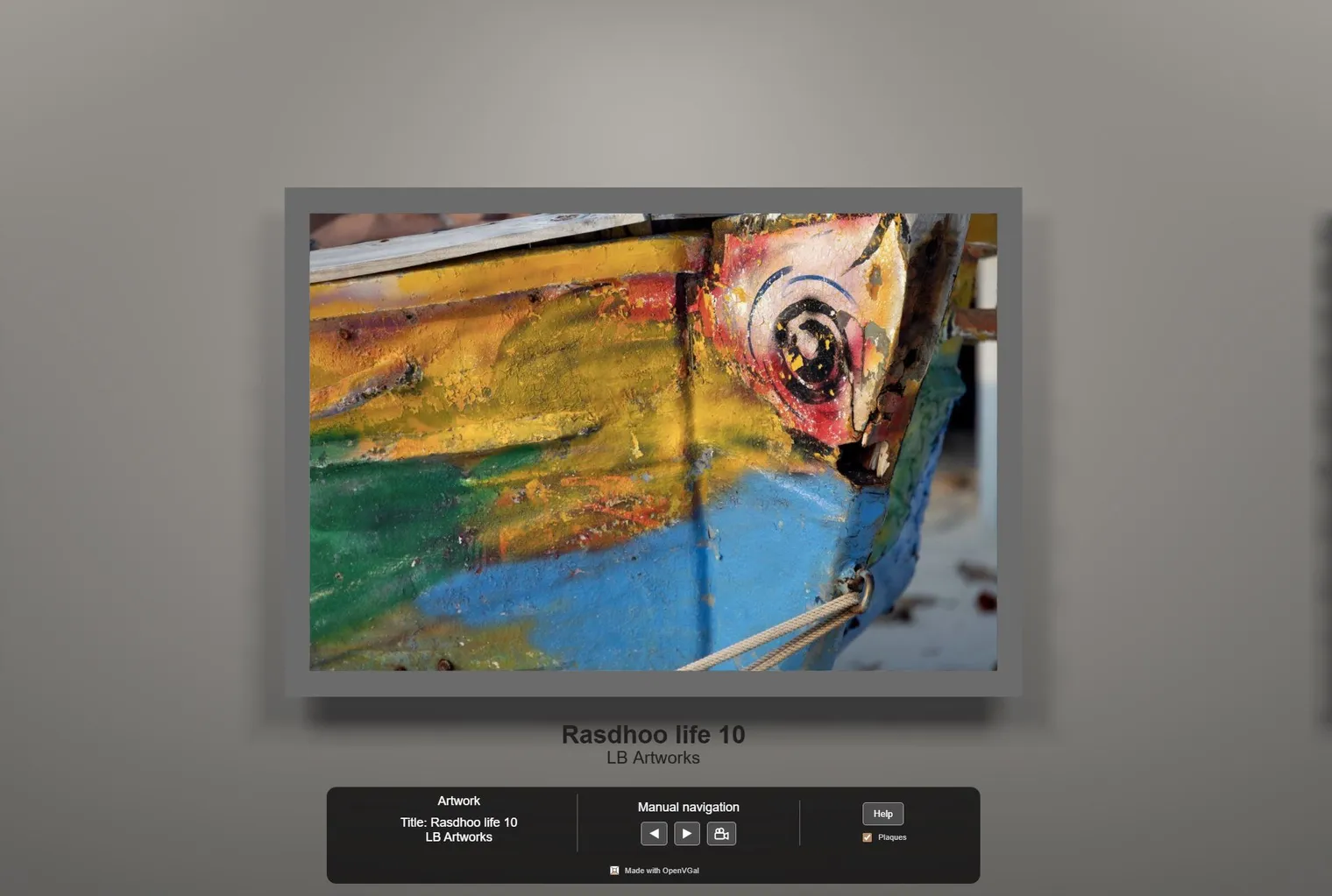
- Artwork
- The title of the piece you last stepped up to.
- ◀ ▶
- Under Manual navigation. Steps through the room's pieces one at a time, in the order they were hung.
- Camera icon
- Beside the arrows. Starts and stops the cinematic visit.
- Music note
- Only in a gallery with music. Turns the track off and on again.
- Help
- Diagrams of the movement controls, in English, Spanish, Japanese and Chinese.
- Plaques
- Turns the wall labels beside each piece on and off. They start off.
Browsers keep a page silent until the visitor first clicks or presses a key, so music starts there, not on arrival. It then loops for as long as the gallery is open.
Inspecting artworks
Clicking a piece
Click a work and the camera steps up in front of it, far enough back that the whole piece is in frame — further back on a narrow screen than on a desktop. The title appears in the Artwork readout on the overlay.
The arrows
◀ and ▶ on the overlay move you between pieces one at a time, in the order
they were hung. This is the fastest way to work through everything in a room.
The cinematic visit
The camera icon beside the arrows hands the walk over to the gallery. It flies itself from piece to piece, pausing about four seconds at each, shuffling the order and working through every piece before repeating any — so a visitor who leaves it running does not get the same wall twice in a row. While it flies it ignores walls and furniture and takes the direct line.
Take the controls back whenever you like: press a movement key or tap the
gallery and the tour stops where it stands. ◀ and ▶ then continue from the
piece you were looking at, not from the beginning.
Worth leaving running on a screen at an opening, or on a laptop that visitors walk past. It needs no one to drive it and it never ends.
Recording a video
Every gallery has a Record video button in the top-right corner — Record & share on a phone. Press it and the gallery films a short vertical clip for you: the camera travels to three artworks in the room you are standing in, pauses about two and a half seconds at each, and stops on its own. The clip is 1080 × 1920, the shape Instagram Reels, TikTok and Stories expect, with the gallery’s title and an OpenVGal mark on it.
While it records, the screen narrows to the vertical frame so you see the shot being taken, and the button reads Stop if you want to end early.
What happens next depends on the device:
- Phone — the share sheet opens, so the clip goes straight to an app. If the browser holds the sheet back, the button turns into Share video; tap it once more.
- Computer — the clip downloads as a file named after the gallery.
The three pieces are picked at random, so pressing it again gives a different clip. Stand in the room you want to show before you start.